
Google Advertising Policies & Best Practices
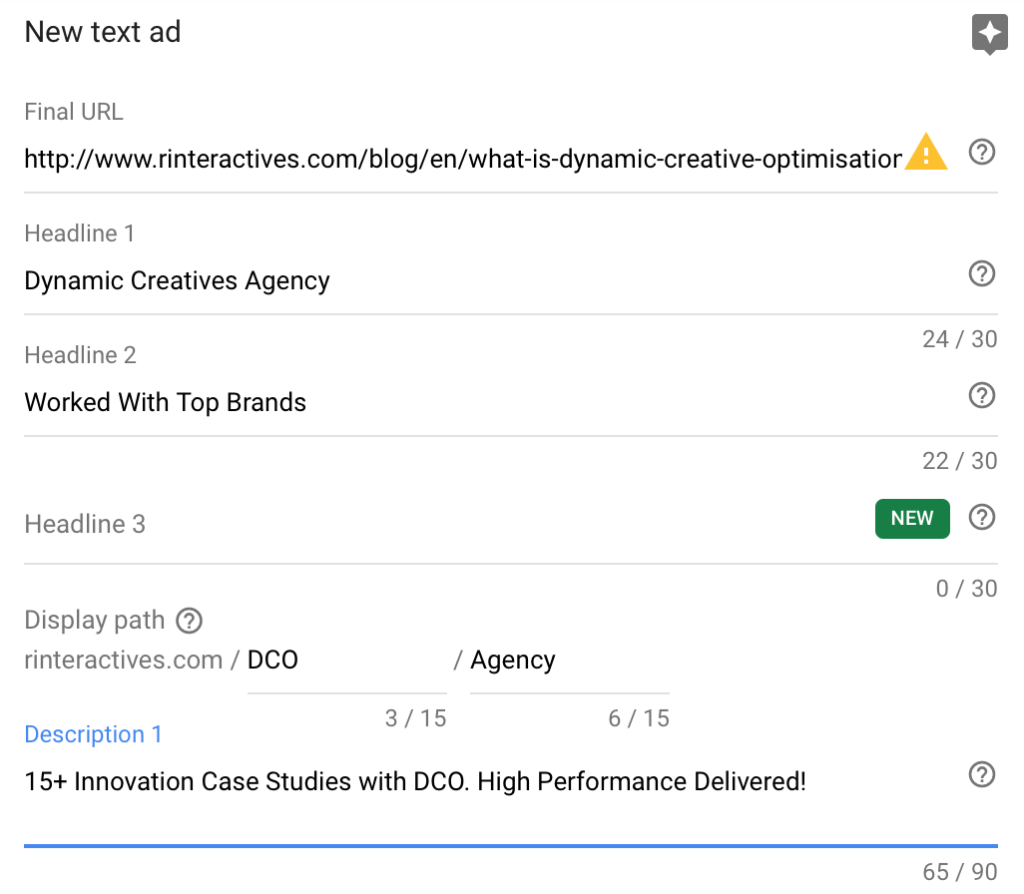
Google has defined few policies for text ad copies so that it provides quality user experience, the ads are relevant, clear and useful to the users looking for products and services on Google . Below are different policies defined by Google, which you need to consider while creating Google Text Ad Copies: Excessive Capitalization Brand Name Symbols Display URL Domain Name & Destination URL Domain Name Character Limits Spellings & Grammar Special Characters & Punctuations Repetition Unnecessary Spacing Phone Number in Ad Copy Inappropriate Content Advanced Google Adwords Course by Rahul Gadekar – Access Now Let’s understand in detail each Google Ad Copy Policy 1. Excessive Capitalization As per Google’s policy, you can’t use excessive capitalization in your ad copy. Eg: SOFTWARE or SOFTwAre or S.O.F.T.W.A.R.E This is not allowed on search ads. 2. Brand Name As per Google’s policy, using somebody else’s brand name in text ad is not allowed Eg: You can’t use GOOGLE in an Ad Copy or Amazon in your ad copy. If you are a reseller of a particular brand who have shared authorization to do so, in that case you can “request review” to get the approval done from Google’s team 3. Symbols You are not allowed to used symbols in ad copies Eg: Any Emoji is not allowed to be used in Google Text Ad Copy 4. Display URL Domain Name & Destination URL Domain Name Display URL domain name & destination URL domain name should be same. You can’t add two different domain names for both the URL options Eg: In the below example As soon as I entered the destination URL which has a domain www.rinteractives.com, you can see that the Display URl’s domain is automatically selected as www.rinteractives.com and I can only add text in the path. 5. Character Limits All the elements of the ad copy has a character limit, you can’t exceed the character limit. Below is the character limit for each element of ad copy Headline 1 – Character limit is 30 characters Headline 2 – Character limit is 30 characters Headline 3 – Character limit is 30 characters Display Path 1 – Character limit is 15 characters Display Path 2 – Character limit is 15 characters Description 1 – Description 1 character limit is 90 characters Description 2 – Description 2 character limit is 90 characters 6. Spellings & Grammar Spelling mistakes are not accepted on text ads. Also, if the sentence is grammatically incorrect, Google might disapprove your ad Eg: Order Cke Online or Cakes Here Order 7. Special Characters & Punctuations Excessive use of special characters & punctuations are not allowed in Google Text ads Eg: Bullet Points, asterisks, ellipses etc. Hurry!!!, Shop Now!!!. In some cases it might be allowed, if you are using 5*Hotel, in this case you will have to request review to get the approval for your ad copy. Also, in the case of app titles and developers name, you may have to request review to get the approval. 8. Repetition Repetition of words is not allowed in the ad copy. This policy is also applicable for ad extensions, wherein you can’t repeat the text again and again. Eg. Repeating Product Name, Repetition of brand name in the ad copy etc You can fix a disapproved ad or extensions by clicking here 9. Unnecessary Spacing Omitting a space or adding unnecessary spaces between letters or words in not allowed Omitting a Space Eg: Online,cake order Unnecessary Spacing Eg: C a k e s or ca kes 10. Phone Number in Ad Copy Phone no is not allowed in ad copy Eg: Call 18001237654, is not allowed If you want users to call you, then use call extensions for your ad copy 11. Inappropriate Content Google disapproves content which: Promotes hatred Promotes Violence Content is shocking Discrimination Content Harasses or intimidates Advocates for physical or mental harm Uses curse words Variations and misspellings of profane language Natural disaster Animal Cruelty Adult Content Conclusion: Google has defined these guides to make sure that your ads are safe, relevant and provide good user experience to users, while they are researching on search. In order to make sure that your ads don’t get disapproved, you need to follow the policies by Google. Also making the ads more relevant and clear to the users, will drive more relevant traffic leading to higher returns!
How To Setup IF Function in Google Ads
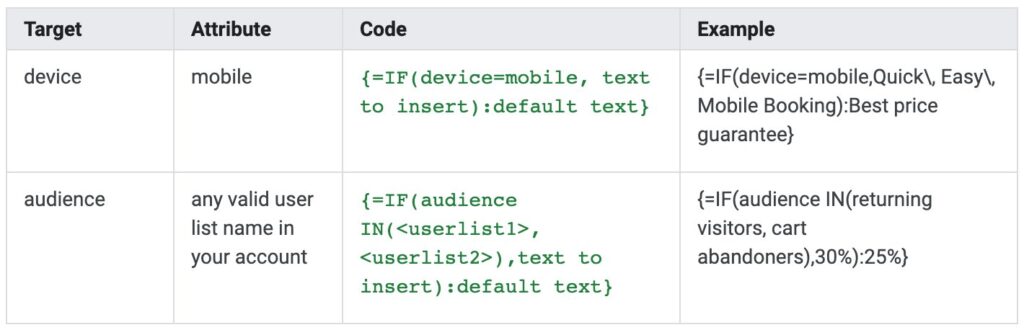
Ad Copy is the first thing that users see when they are looking for your products/services on Google. If the ad is relevant and more tailored, the chances of users clicking on it will increase. IF function in Google Ads allows you to do that! So What is IF Function in Google Ads? IF Function allows advertisers to insert a specific message or a text in their ad copy when a specific condition is met and a default text when it does not meet the condition. IF function helps your to tailor your message basis device or audience, making sure relevant messages are triggered to potential customers on search. Let’s understand with an example: For Audience Condition – Let’s say you are an ecommerce brand and you want to tailor your message to users who added the product in the cart but left without purchasing, while they are still searching for the product on Google. You can define an ad copy with additional 10% discount or any discount which you would like to offer to those users who are cart abandoners. For Device Condition – For different devices you would like to communicate with different messages. For Eg: On mobile you want to have a different CTA which reduces the time to purchase, you can set a different messaging for mobile as a device. So How does IF function in Google Ads work? If function only works on search network only. IF function parameter has to be defined with braces “{“ in the ad copy. Have a look at the below screenshot, once I type “{“, automatically a drop down comes which has IF function option in it at the bottom. Once you click on the IF function, you will come across the below screen, with two options, device and audience as below Below is an example by Google, which explains the difference between device and audience. We can see that both the IF function are similar in terms of syntax used or parameters used, only difference is that the audience target has an additional syntax called as IN, which helps Google to understand which audience list has been set as the targeted for IF function. Let’s also, understand what each syntax means: {=IF means Starts (device=mobile means targeted to mobile device text to insert means, text/copy you want to show to users on device (in this case mobile) ): – This closes the attribute default text} – It’s the default text which you want to show to uses who don’t match the above criteria When you are using IF function, do make sure that you add the default text in the default text option below. Default text will be shown to the users who do not satisfy the IF condition, so it’s important to define default text while using IF function. Let’s now understand each IF function in detail: Device IF Function: In the device IF function above example, you can see that a tailor made ad is defined to users on mobile with a message saying, “Free Shipping On Mobile Orders!” You can customize the ad copy the way you want by adding offers, discounts, product highlights etc of the product you are promoting Audience IF function: In the audience IF function above example, you can see that cart abandoners have “Save 30%” as the text, where as other audiences will be shown “Save 20%” You can define the ad copy basis the product, discounts etc you are offering. How to setup IF function in Google Ads Step 1: Login to Google Ads Step 2: Go to any campaign for which you want to setup the IF function Step 3: In the campaign, click on the Ads & Extensions option on the right hand side Step 4: Once you are in Ads & extensions, click the blue color plus button Step 5: Once you click on the plus button, say new text ad Step 6: Once you click on text ad, now the next question is where do you want to define IF function in your ad, I prefer using it in Headline 1 or in the description. If I am running offers or discounts, I prefer headline 1. If I want to add additional information about product or service in that case I use IF function in the description, you can also select basis your requirement. To add IF function in the ad copy, use braces “{“ and a dropdown will come with an option of IF function Step 7: Once you select the IF function option, the next step is to define the condition for which you want the IF function, which is a device or audience Step 8: Once the IF function is defined, set the default text, complete the ad copy by adding final url and other text options in the ad copy and your IF function is ready to go live once it’s approved! Conclusion: If function is a tailored way to communicate with your target audience on devices and with the audiences who have visited your site without converting. As IF function is tailored it increases the chances of clicks leads to higher ROI. Try IF function today and let me know how it performs! Related Articles: Using Ad Customizers In Google Text Ads Dynamic Search Ads To Increase ROI
What is Display Advertising

In today’s Digital Ecosystem, Display Advertising is considered as one of the key channels for Marketing and advertisers are looking to maximize ROI from the spends on Display. Advertisers are continuously experimenting and optimising their display efforts to achieve brand objectives. So What is Display Advertising? Display Advertising in Digital Marketing is a channel of advertising that conveys a brand message with a help of banner, image or any graphical content. These ads are served on different publishing websites in specific areas with fixed dimensions. Below is an example of a display ad on a website Display Advertising Market Size WorldWide The display advertising spends worldwide are expected to reach around $97.18 Billion by 2022 (Source: Pubmatic) Display Advertising Market Size India The display advertising market is India is around 2,270 Cr (In INR) for 2019 and is expected to grow fast due to programmatic media buying being considered as the key channel for display media buying (Source: DAN Report) So what is a Banner Ad? Below are a few examples of banner ads of our campaigns Different ways to do Display Advertising Display advertising can be done through different channels including Google Ads – Through Google ads you can create display ads and target users on different websites which are under Google Display Network Programmatic Ads – Through Programmatic ad platforms you can create display ads and target users on a wider network compared to Google Display Network. If you are looking for effective targeting with personalised ad serving, you can go with programmatic ads. Programmatic Platforms Eg: DBM, R Interactives etc Ad Networks – Ad Networks are third party networks who are connected with different publishers, you can also use these networks to create & run display ads. Ad Networks Eg: Komli, Tyro etc Direct Buy (Publishers) – Direct Buy is buying direct inventory on publisher websites by connecting directly with the publishers. If you are looking for Homepage MastHead or a RoadBlock, you can talk directly to the publishers So how do advertisers target users on Display Network As display is push marketing concept, where we are looking to grab the attention of the users first and then engage the user, display targeting has to be done effectively in order to achieve objectives. Below are the targeting methods used in the industry for Display ads Demographics – Demographic targeting is basis targeting by Age & Gender of the audience you want to target Display Keywords – Display targeting method is by targeting pages on which a particular keyword is mentioned. For Eg: If I am advertiser, who is looking to promote his villa project which is in Goa, I can use the keyword “villa’s in goa” as a display keyword, this will help me to show on relevant pages of the keyword targeted Placements – Placements in display advertising means websites. Advertisers would like to target users basis a specific website For Eg: In the same example of an advertiser who is promoting his villa project which is in goa, can target websites like Forbes, Fortune etc to showcase their ads Topics – Topics targeting is basis different topics of the website including Fitness, Haircare, investing etc. The ads will be shown on those pages which match the selected topics by advertisers Audiences – Audiences targeting includes 3 types of sub targeting as below Interest (Affinity and Custom Affinity) – This is interest based targeting which includes users having different interests on websites including Luxury Shoppers, Health & Fitness Buff, Business Travellers etc. Advertisers can select the interest basis their target audience to market their product/services on display network In Market & Custom Intent – In Market audience includes targeting users who are actively researching online for your products/services basis different content categories including handbags, shoes, education etc. Remarketing – Remarketing targeting method includes following up with users who have interacted with your website. You can follow them on display network by showing multiple products, different communication pieces, personalised ads to make sure they consider your brand. Different Ads Sizes/Dimensions for Display Advertising 300 x 250 – Medium Rectangle display ad size 336 x 280 – Large Rectangle display ad size 728 x 90 – Leaderboard display ad size 300 x 600 – Half Page display ad size 320 x 100 – Large Mobile Banner display ad size 240 x 400 – Vertical Rectangle display ad size 980 x 120 – Panorama display ad size 250 x 360 – Triple Widescreen display ad size 930 x 180 – Top Banner display ad size 580 x 400 – Netboard display ad size 320 x 50 – Mobile Leaderboard display ad size 468 x 60 – Banner display ad size 234 x 60 – Half Banner display ad size 120 x 600 – Skyscraper display ad size 120 x 240 – Vertical Banner display ad size 160 x 600 – Wide Skyscraper display ad size 300 x 1050 – Portrait display ad size 970 x 90 – Large Leaderboard display ad size 970 x 250 – Billboard display ad size 250 x 250 – Square display ad size 200 x 200 – Small Square display ad size 180 x 150 – Small Rectangle display ad size 125 x 125 – Button display ad size Benefits of Display Advertising Brand Awareness – Display ads are very effective when it comes to creating brand awareness. As these ads are image ads, they have the potential to grab the attention of the user who is consuming content on a web page. You can reach out to your target audience by different targeting methods (as mentioned above) and create awareness about your brand Brand Loyalty – Display ads can help to build loyalty as you can target users who have visited your site and also who have bought products from your site by remarketing them on display network. Also, you can keep them engaged at every level of the purchase journey with different communication pieces. Higher ROI – Display ads help
Master Guide To Dynamic Search Ads in 2025

Dynamic Search Ads commonly known as DSA. DSA ads are effective to target broad searches which are relevant to your business or service or product. DSA helps you to increase the visibility of your campaign and fill in the gaps, where you current campaigns might not be able to do. So What Are Dynamic Search Ads (DSA’s)? Dynamic Search Ads are Search Ads which trigger basis the content available on your site or web pages. In this case Google crawls your site and tries to match users search query with the content available on your website, which means if the users search query matches the content on your site, Google will show your ad on Google Search. In dynamic search ads, there are no keywords in the campaigns, the ads are triggered basis the relevancy of the content which matches the search query. How Do Dynamic Search Ads Work? Let’s take an example and understand how does dynamic search ads work. Eg: You have a “logistics Ecommerce Shipping Platform” and someone searches for Ecommerce Shipping Platform, as the content of the page has ecommerce shipping platform mentioned, your ad will be shown on Google paid search. This helps you to increase visibility in broader searches related to the content on your pages which you might miss from your regular search campaigns So How To Create Dynamic Search Ads? Step 1 Login to your Google Ads Account – Login Step 2 Create a new campaign for Dynamic Search Ads, don’t use Dynamic Search Ads in your existing search campaign as you would like to measure how your DSA campaign is performing vs your regular search campaign. Click on the plus blue button to create a new campaign Step 3 Select the campaign goal from the below basis the objective of your campaign. Right now I am selecting leads goal type as my objective is to generate leads for a business which is an Ecommerce Shipping Platform Step 4 The next step is to define the campaign name, the campaign name is the name of the campaign which will help you to identify DSA campaign from your ads account. I am defining my campaign name as Shipyaari – DSA – Mumbai. Shipyaari is the business name and I have added mumbai because I am going to target Mumbai location for this campaign Step 5 Now we need to select the network for the campaign. As this is a search campaign, we will only use search network and untick the box which says include Google Display Network. We should untick Google Display Network because Google will use our campaign budget for Search & Display from the same campaign. Step 6 The next step is to define the start date and end date of the campaign. You can set the start date and end date as per your campaign requirement Step 7 We need to now setup the targeted location for the campaign, so in my case the targeted location is Mumbai, so I am setting targeted location as Mumbai Step 8 The next step is to set up the language of the campaign. So I am setting up English as the language as I am not targeted to regional interface users Step 9 The next step is to set up a budget for your DSA campaign, you can start with a minimum of $10 or Rs. 500 Step 10 The next step is to set up delivery method for your campaign. Two types of delivery methods are available, Standard & Accelerated Standard Delivery Method: It is the recommended delivery method, as it allows you to spend your budget evenly throughout the day Accelerated Delivery Method: Accelerated delivery methods allows you to spend your budget as quickly as possible, this is not recommended for your campaign. Step 11 This is one of the important steps to define for your campaign, which is defining bidding strategy for your campaign. To know more about different bidding strategies in Google Ads and how they work – Refer Article here: An Ultimate Guide to Google Ads Bidding Strategies For the DSA campaign, I am going ahead with Maximise Clicks bidding strategy as my objective is to drive maximum relevant users to the business page Step 12 The next step is to select Ad Extensions, ad extensions are a good way to make your ad relevant and make your ad more prominent, this helps you to increase CTR on your search ads. To know more about different types of Ad Extensions and which to choose for your campaign – Refer Article Here: Google Ad Extensions Guide To Increase ROI Step 13 The next step is to select Dynamic Search Ads option by checking the box and also enter the domain for which you need to run DSA Campaign. For my campaign I have added Shipyaari as the domain because I am creating a DSA campaign for this. Language, I have kept it as English because I am looking to target English users. Step 14 The next step is to create an adgroup, may sure you select dynamic in the ad group type option as our objective is to create dynamic ads Post that, name the ad group and enter the bid which you would like to bid with DSA campaign on Google paid search ads Step 15 The next step is to select on what basis you would like to show your ad, this is basically the targeting for your campaign. There are three options under targeting which are: Categories Recommended For Your Website Specific Webpages All Webpages Let’s understand each of them Categories Recommended For Your Website: Once you select this option, it will suggest you different categories basis your website (as you have already added domain name in step no 13). Eg: In my case, there are 16 categories suggested by Google including drop shipping, e-commerce, logistics, shipping etc These categories are basically themes of your website which are bifurcated by Google. If you select a
What is Ad Rank in Google Ads & How To Improve It
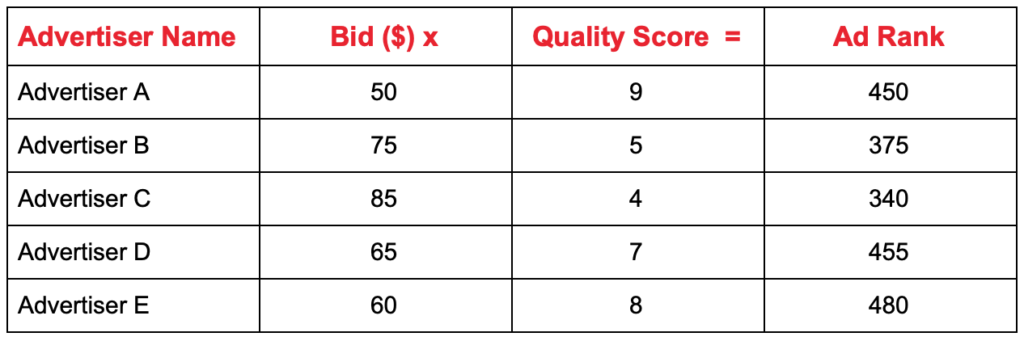
Ad Rank is one of the most important concepts in Google Ads, this concept is defined by Google, which determines how prominently your ads are shown on Google paid search results. Ad Rank affects many important factors of your campaign, so it is important to achieve higher Ad Rank. So What is Ad Rank in Google Ads? Ad Rank is the rank given by Google to an advertiser in the paid search results basis which the advertisers ad position is defined in Google SERP Ad Rank determines the position of an advertiser while ranking in paid search results on Google. Ad Rank has high impact on the visibility of your ads in Google search. Here is a complete video on Google Ad Rank Ad Rank Formula Ad Rank = Bid x Quality Score Bid Bid is the CPC amount with which you are participating in the auction Quality Score Quality Score is the score given to a keyword between 0 to 10 basis following parameters Relevancy of Ad Copy Relevancy of Landing Page CTR 1. Relevancy of Ad Copy Relevancy of Ad Copy means, the users search query should match the content of the ad copy. Eg: If someone is searching for “resorts in coorg”, the ad copy should also say “resorts in coorg”, or else the ad is irrelevant 2. Relevancy of Landing Page Relevancy of landing page means, the user sees an ad copy of “resorts in coorg”, so he should land on Coorg related page, if the user lands on any other page, then the landing page is irrelevant to the user 3. CTR CTR is click through rate of the particular keyword for which we are considering relevancy of ad copy and relevancy of landing page. If all the above three parameters are in place, the quality score of the keyword will be high. As we have now understood quality score, let’s now move back to Ad Rank. Let’s take an example with 5 advertisers and try to understand, how does Google calculates Ad Rank for each Advertiser. In the below example, I have defined a bid for each advertiser and quality score for each advertiser with which they will participate in an auction (Note: you would be able to see bid and quality score for your keywords only) Now when the ad is shown on Google paid results, the position of their ads will be as below: Advertiser E will rank at No 1 position Advertiser D will rank at No 2 position Advertiser A will rank at No 3 position Advertiser B will rank at No 4 position Advertiser C will rank at No 5 position You can see that Advertiser C is bidding with higher amount but still ranking at no 5, this means that higher bid will not help you achieve higher position, what matters is the quality score achieved for your keywords when you participate in any auction. Let’s now understand how much Advertiser E will have to pay if someone clicks on “E”. CPC = Ad Rank of the Competitor Below You + $0.01 Your Quality Score Advertiser E’s CPC = D’s Ad Rank + $0.01 E’s Quality Score Thus, E’s CPC = 455 + $0.01 8 E’s CPC = $ 56.88 Similarly, CPC for D, A, B, C would be calculated Why Ad Rank Matters? Ad Rank helps to improve following metrics CTR – You achieve higher Avg Position if your Ad Rank is high, this helps to improve the CTR for your ads, which drives more users to your landing page Increase in Conversions – As you are driving more users to your landing page, the chances of conversion increase, which leads to a higher ROI High Impression Share – When you achieve high Ad Rank, it helps to achieve higher impression share, which directly relates to increasing visibility on Google paid search for your keywords Conclusion: Ad Rank is one of the important metrics of Google Ads, the primary focus of any campaign should be to achieve higher Ad Rank which helps to increase in higher ROI. Lot of optimisations and experimentations are required in order to achieve higher Ad Rank which includes keywords, ad copy, landing pages etc
क्या है गूगल अॅडवर्डस् / गूगल अॅड्स (What is Google Adwords in Hindi)
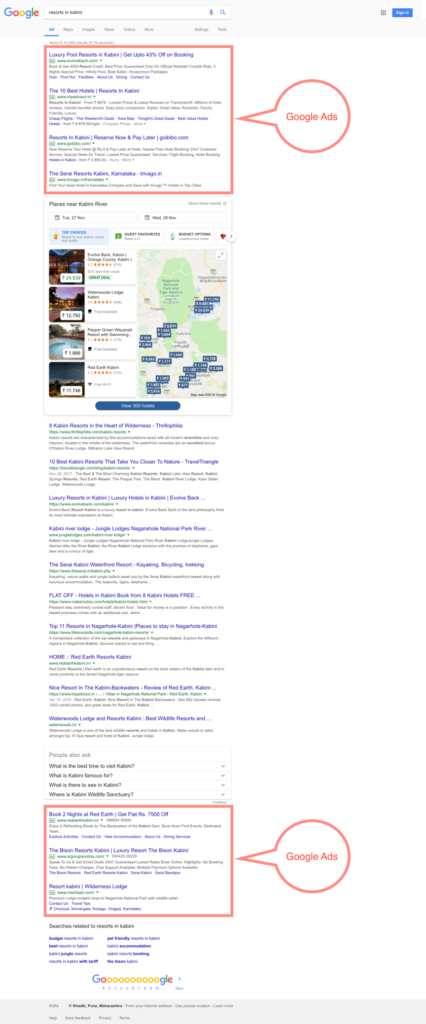
६ साल पहले जब मैंने डिजिटल मार्केटिंग चालू किया तब मैं एक एजन्सी के साथ क्लायंट सर्व्हिसिंग एक्जीक्यूटिव के भूमिका पर काम करता था, जब मुझे गूगल ऍडवर्ड्स कैम्पेन चलाने के लिये कहा, तब मुझे यह बात नई थी और मुजे लगा यह बहुत मुश्किल और क्लिष्ट होगा, परंतु प्राथमिक चीजे जानने के बाद मुजे मालूम हुआ की डिजिटल मार्केटिंग के लिए यह बहुत आसान और प्रभावी माध्यम है| २३ अक्तूबर २००० को ऍडवर्ड्स का लाँचिंग किया गया| सालार कामनगार ने गूगल ऍडवर्ड्स की कल्पना को सर्वप्रथम पेश किया, वह पहला बिज़नेस एक्जीक्यूटिव था, जिसने मौक़ा देखते हि ऍडवर्ड्स का प्लॅटफॉर्म बना दिया | स्काट बैनिस्टर ने उसके बाद कीवर्ड पर आधारित सर्च रिझल्ट्स पर विज्ञापन दिखाने का विचार जताया| आज विश्व भर में १ मिलियन विज्ञापनकर्ता उनके उत्पादन के मार्केटिंग के लिये गूगल ऍडवर्ड्स का प्रयोग करते है, जिससे वह ओनलाईन माध्यम से, अपने दर्शको तक पहुँच सके, जागरूकता जता सके, और अपने बिसनेस के लिये लीड्स और सेल्स को बडा सके| गूगल अॅडवर्डस् अब गूगल अॅड्स से जाना जाता है| यह लेख आपको गूगल ऐडवर्ड्स / गूगल अॅड्स के बारे में जानने के लिए मदत करेगा साथे ही आप गूगल ऐडवर्ड्स की प्राथमिक चीजों के बारे में जान सकेंगे| तो क्या है गूगल ऐडवर्ड्स? (What is Google Adwords in Hindi) गूगल द्वारा गूगल सर्च और गूगल पार्टनर की वेबसाइट्स (गूगल डिस्प्ले नेटवर्क) पर विज्ञापन करने का गूगल ऐडवर्ड्स एक प्लेटफार्म है| गूगल, ऐडवर्ड्स के प्लॅटफॉर्म के जरीये ज्यादा से ज्यादा पैसे बनाता हैं को ज्यादातर पैसा गूगल ऐडवर्ड्स के जरिए आता है जहां की विज्ञापनकर्ता को गूगल को गूगल ऐडवर्ड्स के जरिए विज्ञापन करने के लिए गूगल को पैसे देने पड़ते है| गूगल ऐडवर्ड्स में गूगल ऐडस के विभिन्न प्रकार सर्च अॅड्स डिस्प्ले अॅड्स विडिओ अॅड्स शोपिंग अॅड्स युनिवर्सल ऐप अॅड्स Get Free Introductory Digital Marketing Course by Rahul Gadekar – Access Now 1. गूगल सर्च अॅड्स गूगल सर्च ऐडस जब कोई गूगल सर्च करता है तब ट्रिगर होती है| विज्ञापनकर्ता कौनसे की वर्ड ट्रिगर करने है कौनसे नहीं यह तय कर सकते है| गूगल सर्च पर एक पेज पर पूरे ७ विज्ञापन होते है, ४ विज्ञापन ऊपर और ३ विज्ञापन सर्च रिजल्ट के नीचें होते है| उदा : जब कोई यूजर “रिसोर्ट इन काबिनी’’ के लिए गूगल सर्च करता है तब रिजल्ट कुछ इसा प्रकार से नजर आएँगे| तो गूगल ऐडवर्ड्स कैसे काम करता है? (How does Google Adwords work in Hindi) गूगल ऐडवर्ड्स रियल टाईम बिडिंग (आर टी बी) माडल पर काम करता है| (आर टी बी) का मतलब वेब पेज लोड होने के समय रियल टाईम नीलामी पर विज्ञापन ख़रीदे या बेचे जाते है| पूल मार्केटिंग (मार्केट को खींचना): सर्च ऐडस पूल बेस्ड ऐडस होती है जहां यूजर किसी उत्पादन या सेवाओं के लिए गूगल पर सर्च करता है तब तो सक्रीय रूप से उत्पादन या सेवाओं को खोजता है| व्यवसाय को इसी वक्त उन्हें उनके विज्ञापन दिखाने के का मौका मिलता है जो टार्गेट ऑडियंस को दिख जाए, उनका ट्राफिक बढ़ जाए और वह बातचीत बना सके| की वर्ड बेस्ड टार्गेटिंग: सर्च ऐडस पूरी तरह की वर्ड्स पर निर्भर होते है, विज्ञापनकर्ता कौनसे की वर्ड ट्रिगर करने है कौनसे नहीं यह तय कर सकते है| इसी कारण डिजिटल मार्केटिंग में सर्च ऐडस उच्च रूप से टार्गेटिंग चैनल बन रहा है| हाई कोनवरसेशन रेट: सर्च ऐडस का हमेशा हाई कोनवरसेशन रेट होता है क्योंकी यूजर सक्रीय रूप से उत्पादन या सेवाओं को ढूंढता है, इसी वजह से जो यूजर सर्चिंग करता है उसीसे पुश मार्केटिंग के मुकाबले बातचीत का मौक़ा बढ़ जाता है| बजट का कम नुकसान: सर्च ऐडस की वर्ड्स के टार्गेट बेस पर मौक़ा देते है इसी वजह से बजट का बहुत ही कम नुकसान होता है| तो विज्ञापनकर्ता उनका बजट का सर्च ऐडस पर प्रभावी रूप से उपयोग कर सकते है जिससे उच्च रूप की निवेश वापसी मिल कर प्रति अर्जन कम लागत (लो कॉस्ट एक्विजिशन) होती है| डाईरेक्ट कॉल टू बिजनेस: मोबाईल डिवाईस पर सर्च ऐडस के जरिए विज्ञापनकर्ता संबधित मोबाईल नंबर से अपना विज्ञापनजोड़ सकते है| यूजर ने विज्ञापन क्लिक करने के बाद व्यावसायिक यूजर से सीधी बात कर सकते है| सीधी बात स्थानीय व्यवसाय के लिए फायदेमंद है जैसे की रेस्तरां, स्पा, सलून वगैरा. 2. गूगल डिस्प्ले अॅड्स जब आप वेबसाइट ब्राऊज करते है तब आपने डिस्प्ले ऐडस देखी होगी| वह दाए, ऊपर, नीचें या पेज के कन्टेन्ट के बीच भी आ सकते है| डिस्प्ले ऐड्स बैनर ऐड्स या इमेज ऐड्स के नाम से भी जाने जाते है| नीचें डिस्प्ले ऐड्स का उदाहरण दिया है| डिस्प्ले ऐड में जहां दाए ओर “i” निशान हो वह ऐड गूगल ऐडस के जरिए ट्रिगर की गई है| जिस ऐड्स पर दाई ओर “i” निशान ना हो वह ऐड गूगल ने ट्रिगर नहीं की है| डिस्प्ले ऐड्स ट्रिगर पर निर्भर होते है जिसमें की वर्ड, वैबसाइटस, रुची, विषय शामिल होते है| जो वेबसाइट विज्ञापन को सहायता करती है उसी पर डिस्प्ले ऐड्स दिखाई देते है| अगर विज्ञापनकर्ता को उनकी वैबसाइट पर गूगल ऐडस के माध्यम से नजर रखनी है तो उन्हें गूगल ऐड सेन्स का कोड अपने वेबसाइट में लगाना होता है| गूगल डिस्प्ले अॅड्स के फायदे: पुश मार्केटिंग: गूगल डिस्प्ले ऐड्स पुश बेस्ड होते है जहां विज्ञापनकर्ता उंके टार्गेट ऑडियंस के रुची, विषय वेबसाइटस, कीवर्ड्स के जरिये टार्गेट करा सकते है| कन्टेन्ट के टुकड़े टार्गेट ऑडियंस को पुश करके विज्ञापनकर्ता ज्यादा से ज्यादा ऑडियंस तक पहुँच सकते है, उनके ब्रांड, उत्पादन या सेवाओं के बारे में जागरूकता बना सकते है जो बातचीत में बदल सकता है| बिल्ड ब्रांड: अगर व्यवसाय मार्किट में नया है तो व्यवसाय को टार्गेट ऑडियंस के सामने दिखना और उनसे ब्रांड का सन्देश देना जरुरी है| डिस्प्ले ऐड्स इस मामले में विज्ञापन का ज्यादा शक्तिशाली रूप है जो आक्रामकता से ब्रांड को डिजिटल मीडिया पे बिल्ड करने में सहायता करता है| कई विज्ञापनकर्ता जब उनका उत्पादन लाँच करते है तब होम पेज की इन्वेंटरी पब्लिशर्स से सीधे खरीदते है| ब्रांड रिकॉल: टार्गेट युजर जब ऑनलाईन ब्राऊज करता है तब डिस्प्ले ऐड्स कई बार दिखाए जाते है, जिससे ब्रांड रिकॉल होता है| विज्ञापनकर्ता अलग अलग डीवाईस पर उसी युजर को टार्गेट करके साथ ही युट्युब बिल्डींग के जरीये उनका ब्रान्ड
Increase Your ROI With Dynamic Keyword Insertion
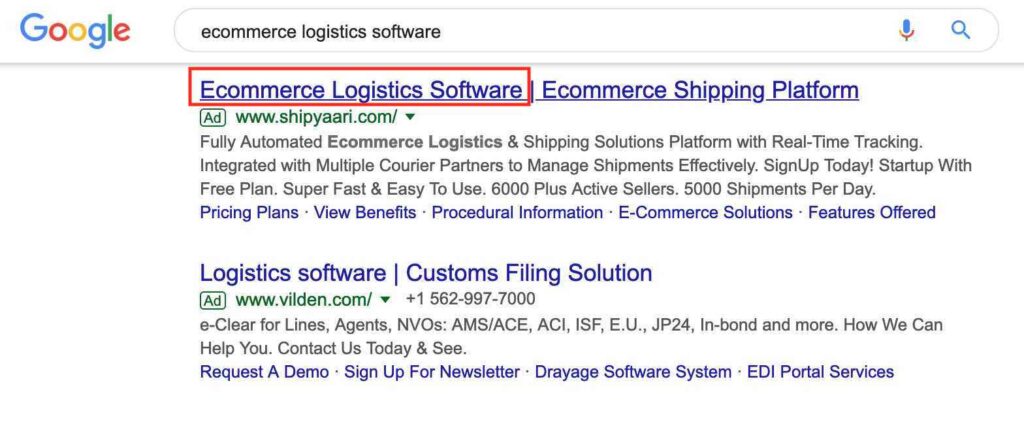
When you are managing high budget Google Search Ads campaigns with multiple products on the website, it’s difficult to create ad copy for each product. Google Ads has lot of features which can be used to make the most of your search ads. Today, we are going to look at keyword insertion, it is one of the features of Google Search Ads. It is also know as Dynamic Keyword Insertion, So let’s understand in detail! What is Keyword Insertion in Google Search Ads? Keyword insertion is a feature of search ads where Google dynamically inserts users search query in your ad copy in real time. This helps to make your ad more relevant to the users searching for your products, resulting in higher click through rates. Let’s take an example and understand! How does Dynamic Keyword Insertion work? Here is an example for one of the campaign I am managing, the business is an aggregator ecommerce logistics shipping platform. Here, I have used competitor’s name in the keyword insertion feature so that if any users searches with a competitors term on Google search, my ad copy will have dynamic keyword insertion of the competitor brand term. Keyword Insertion Example 1 Keyword Insertion Example 2Google might insert the entire query or might enter some part of the query, it depends on Google. You can see in the above example 1, Google has only inserted partial query in the ad copy whereas in the second example, Google has inserted the entire query in the ad copy headline. Further, I would also like to use services keywords in my ad copy, refer below example. Where I have used services keyword which is ecommerce logistics software, and the keyword is dynamically inserted in my ad copy. Keyword Insertion Example 3 So How to setup Dynamic Keyword Insertion? Let’s understand it step by step: Step 1 Login to your Google Ads Account Step 2 Go to any of your campaigns, and come to Ads & Extensions section, refer screenshot below: Step 3 Click the blue plus button, to create an ad copy Step 4 In the headline 1 section, press “ { “ symbol on your keyword, as soon as you do that, you will see a drop which following options. The first option you see is the keyword insertion option. Step 5 Click on the keyword insertion option. Once you click on the keyword insertion option, you will see a drop down as per the below screenshot. The first option in the screenshot is default text, default text is a text which we need to add in 30 characters, this text is considered as a default text which means, if Google is not able to add the users query in the keyword insertion option, in that case, the default text will be shown in the search ad. The second option in the drop down is case, select the case which you would like to go with from Title Case, Sentence Case or Lowercase. This case style will be applied to keyword insertion text in the ad copy whenever it is shown of Google search. Step 6 Fill up the other options in the ad copy the way I have done in the above screenshot, this includes, headline 2, headline 3, description 1 and description 2. Once you fill up the other option in the ad copy, you will be able to see the preview on the right hand side with the default text (refer above screenshot for reference ad copy) Step 7 Click, Save & Continue. You ad copy is now ready with keyword insertion feature to go live. Google will now review your ad copy and take it live in few hours! Advantages of Using Dynamic Keyword Insertion! Relevancy Dynamic Keyword Insertion helps you to achieve relevancy of your ad copy with the user’s search query. Users will find your ad relevant with what they are looking for. Higher CTR As the relevancy of your ad copy is high, the chances of clicks on your ad copy will increase, thus resulting in higher CTR. Higher Visitors As the CTR will increase for your ad, the no of visitors diverting from your ad to your business page will be high. Higher Quality Scores As the ads are more relevant to the users and the CTR’s are high, this helps you to achieve higher quality score, which eventually helps you to reduce bid amounts for your ad campaigns. Higher ROI The more the visitors coming to your business page, the higher the chances of conversions, resulting in higher ROI Best practices to use Dynamic Keyword Insertion Selecting Right Keywords: Before you start with keyword insertion, you need to make sure the keywords which you have used in the search campaign are relevant to your business/products/services. If the keywords are irrelevant, then using keyword insertion won’t help. Selecting right keywords, is the same way we do for search ads. To know more about selecting right keywords for your search ads – Refer Article How to Use Google Ads Keyword Planner Avoid Brand Names: Avoid competitor’s brand name, because if it’s a global brand, Google will disapprove your ad. The brand names I have used in the above examples are not very big brands, so Google has approved my ad copy. But you won’t be able to use brand name like Apple, Samsung etc Character Limitation: There is a character limitation for every element of the ad copy, so if you are using keyword insertion in headlines, the character limit is 30 characters. Don’t Use Single Word: Don’t just use a single word in the default text. Use at least 2 or 3 words in the default text because, single word won’t communicate the message of your product/service which you are communicating. As Google allows us to use 30 characters, make sure you use them effectively. Use Correct Syntax : Do make sure you use the correct syntax like {Keyword:Ecommerce Logistics Software}. If you are
An Ultimate Guide To Create Google Search Ads in 2022

Google Search Ads are ads which show on Google search when a keyword is searched on Google. Google Search Ads also work on pay per click model. Search Ads are very effective as users are actively looking for products and services on Google Search, so targeting your business keywords and reaching out to these users can help you generate sales. (To know more about the Importance of Google Search Ads follow our article section Advantages of Google Ads here) In the below screenshot for the search query “Resorts in Kabini”, we can see top 4 results as search ads and the bottom 3 results as the search ads. There can be maximum 7 Ads on a particular search result page of Google. So How to Create Google Search Ads. So before we start creating Google Search Ads, let’s first understand the campaign structure in Google Adwords. Google Search Ads have a fixed campaign structure which is as below: Designing a campaign structure for your search campaign effectively is very important in order to improve performance of your campaign. In a particular Google Ads account we can create: 10,000 – Campaigns 20,000 – Ad Groups 25 – Ad Copies 50,000 – Keywords Let’s now understand each term which includes Campaigns, Ad Groups, Ad Copy and Keywords: Understanding Campaign: A Campaign is a set of ad groups (which has keywords & ad copy), that shares a budget, location setting, bid strategy, language setting, ad extensions and more. Campaigns can be defined basis the categories or products or services that brand offers. In one campaign, you can create upto 20,000 ad groups You can create separate search ad campaigns for different locations with different budgets Understanding Ad Group: An Ad Group is a theme which represents similar set of keywords. For Eg: In the below Ad Group, “Luxury Resorts in Coorg”, the ad group has different combination of keywords including Best Luxury Resorts in Coorg, Luxury Resorts in Coorg with Swimming Pool and Luxury Resorts in Coorg for Family. So Luxury Resorts in Coorg becomes a theme (an ad group) and in this ad group there are similar set of keywords In a particular campaign, you can create around 20,000 ad groups You can define ad groups with various themes basis your products and services Understanding Ad Copy: An Ad Copy is the message which triggers on Google search when an user searches for a query. It is the message which you want to communicate to your target audience on Google Search. The ad copy can talk about your product, USP of your product or any sales pitch you want to communicate. For Eg: in the below screenshot for the keyword “Resorts in Kabini”, there are 4 Ads on Google search, let’s consider the first ad which is by EvolveBack.com, so the message/content/text which is written in the ad will be called as an Ad Copy. Writing an effective Ad Copy is important which holds the interest of the prospective buyer Effective Ad Copy helps to improve CTR which further helps to improve conversions (For understanding how to write effective ad copies – Refer article here: How to Write Effective Ad Copies to Drive Sales) Understanding Keywords: Keywords are the phrases/queries which you add in your campaign (under every ad group), on which you want to show your search ad. For eg: In the below screenshot, the keywords added in the ad groups are Best Luxury Resorts in Coorg, Luxury Resorts in Coorg with Swimming Pool and Luxury Resorts in Coorg for Family. You can add multiple keywords in an ad group Selecting right keyword is important in order to use you campaign budget effectively to drive users looking for your products and services Keywords are selected using Google Keyword Planner Now that we have understood the campaign structure in Google Ads account, let’s move towards creating Google Search Ad Step 1 Login to your Google Ads account and click on the plus button in blue color on the left hand side and then click new campaign. Once you click new campaign, you will see the below options. Sales: This goal option should be selected when your objective is sales on your website, which means the user should be able to purchase products on your website. If your website does not have a payment gateway method, I would recommend not to go with this option. You can select this option for websites like ecommerce, E-Ticketing, Online Courses etc Leads: This goal option should be selected if your objective is to generate leads/enquiries etc, which means the landing page should have a form in order to collect leads through it. Do not select this option if your website has a payment gateway method. Website Traffic: Website Traffic option should be selected when your objective is just to drive traffic from your ads to your landing page. This option’s key objective is drive maximum clicks from the budget you have defined for your campaign. (Won’t recommend rest of the goals for Google Search Campaigns. Rest of the goals can be used for Display Ads, Video Ads & Universal Ads) Let’s now take one business example and create a campaign for the same! The Business is a Real Estate project located in a location called Balewadi (Pune, India). It’s a 3 BHK Luxury Project. Our objective for the campaign is to generate leads for the campaign targeting users who are searching from Pune location. So let’s start by selecting our goal as Leads. Step 2 Once we select the Goal, the next step is to define the campaign name. I am defining the campaign name as 3 BHK – Pune – Search. Step 3 After defining the campaign name, the next step is to select the network. As our campaign is search campaign, we should untick the display network option (as mentioned in the below screenshot). The reason why we should untick the display network because we are only looking at search campaign and
How To Create Google Ads/Adwords Manager (MCC) Account
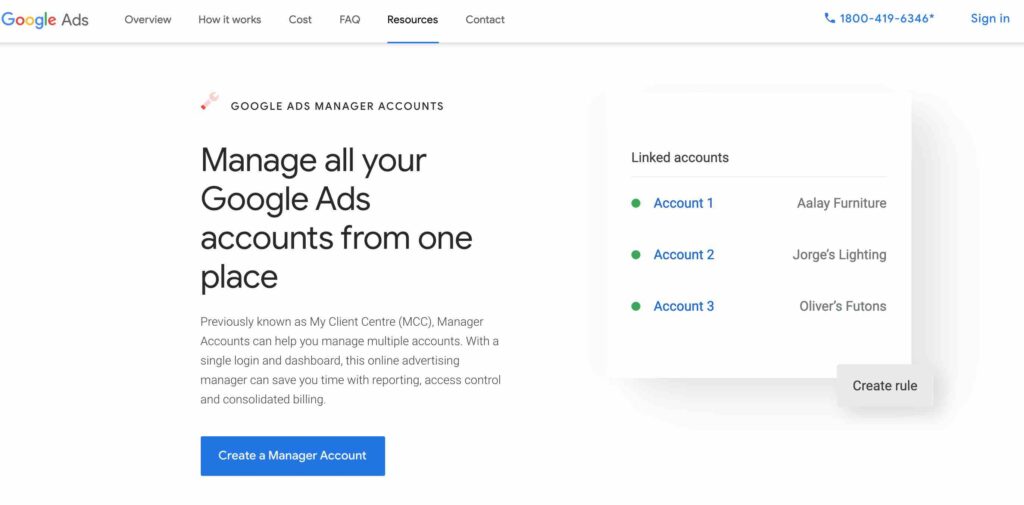
Managing Multiple Google Ads account can be difficult, as you would need separate email id’s and password to login different Google Ads account. If you are an agency, freelancer or a Digital Marketing consultant, you would be managing multiple clients and you would like to access all the accounts with one single login, that’s when MCC account comes into the picture. MCC account stands for My Client Centre, it is also commonly knows as Google Ads Manager account. It is important to understand that what type of ads account you need. In Google Ads there are two types of Google Ads account Individual Account My Client Centre Account (MCC) Let’s understand each of them 1. Individual Account Individual Google Ads account is an account which is a single client account. This type of account should be cerated by companies who are advertising to promote their business or marketing their products and services. For Eg: Pepsi, Flipkart, Mahindra etc would create an individual account as they would be marketing their products or services. 2. My Client Centre Account(MCC) MCC account is an account, through which you can manage multiple accounts. This type of account should be created by marketing agencies, marketing consultants, marketing freelancers etc who are doing marketing on behalf of the brand. For Eg: Accenture is managing TATA’s account, so Accenture would create MCC account, so that they can managing TATA’s advertising campaigns and other clients/business working with them. Get Free Introductory Digital Marketing Course by Rahul Gadekar – Access Now So How To Create Google Ads Manager (MCC) Account? Step 1 Visit Google Ads MCC Account Page – Click here Step 2 You will see a page as below Step 3 Click on the button create a Manager Account Advanced Google Adwords Course by Rahul Gadekar – Access Now Step 4 Once you click on the button, you would land on the below screen Fill the above fields including Email Address – This is the email address for which you would like to create an ad account. Always remember that this email address should not hold a Google Ads account in the past. The email address should not be registered as a Google Ads account. Name Your Account – This should be the name of your company or business or agency or consulting firm. How will you primarily use Google Ads Manager Account – Select the second option as to manage other people’s account because our objective is to manage other businesses advertising campaigns on Google Ads Country – Select the country from where you are doing the marketing. But, if you are doing marketing from one country to another country then select the target audience country. For Eg: If I am based in India and my most of the clients are based in US and my target audience is in US, then my country would be USA Time Zone & Currency – Select the time zone and currency basis the country you have selected. For Eg: I have selected India as the country, IST as the time zone and Indian Rupee as the currency. Once you have filled in all the details, it will ask you to login with your gmail id and password. Once you login, your MCC account is ready! Things to remember while creating MCC Account The email id which you are using to create MCC account should not currently hold any type of Google Ad account, if it holds an individual account then you won’t be able to create a MCC account from the same email id yourself. You won’t be able to change Country, Time Zone and Currency once the account is created. So make sure before creating. Do make sure you use the correct link to create MCC Account, because if you create an individual account, then you won’t be able to switch to MCC Account yourself Benefits of Google Manager (MCC) Account 1. Manage multiple Google ads account with single login When you are managing 10 Google ads account or may be more than that, it becomes very difficult to remember the user id and password for each and every account. MCC helps you to manage all the ads account under one roof with single login and password. 2. Effective Management With the Help of MCC account, you are able to management all the accounts effectively as you can preview statistics per day, per month, custom date range etc. This helps you to monitor data without consuming much time on a particular account and then optimise your campaigns effectively to improve efficiency. 3. Tracking History Through MCC account, you can track history of each account. This history includes who has made what what changes to what campaign on what time. In the below screenshot of one of my ad account, you can see that I have made some changes to a particular campaign at a particular time. This will also help you to understand when was the change applied to the campaign and what difference it has resulted in the performance. If there are any issues with the changes, you can also understand which email id actually did that change and you can talk to your team member who made the change. Now that you have understood, how to create Google MCC account and the benefits. Let’s now take a look at linking your Google Ads Account (Individual Account) to MCC account. So how to link Google Ads Account to Google MCC Account? Step 1 Login to your Google Ads MCC Account Step 2 Once you login to your Google Ads MCC account, you will see a dashboard like below. On the dashboard click on the plus button Step 3 Once you click on the plus button, you will see two options as below. Create New Account and Link Existing Account Click on create new account option. Once you click on the option, you will see the below screen. Enter the CID of your client’s account in the box
An Ultimate Guide to Google Ads/Adwords Bidding Strategies
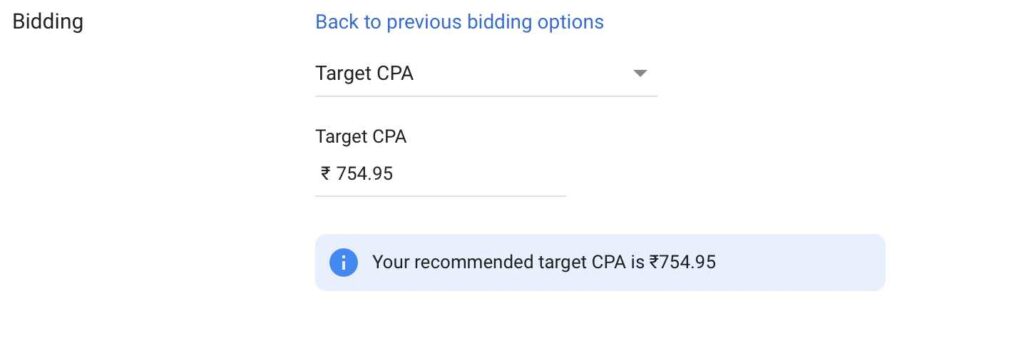
Google Ads/Google Adwords Bidding strategy in simple words is basically how would you like to pay to Google. Eg per click, per acquisition, search page location, maximum clicks, basis conversions etc In Search Ads, it’s important to select the right set of keywords or else you will end up consuming budget on irrelevant keywords. To know more about selecting right set of keywords click here Different types of Bidding strategy available in Google Ads are as below: Target CPA Target ROAS Target Search Page Location Target OutRanking Share Maximize Clicks Maximum Conversions Enhanced CPC Manual CPC Let’s Understand Each one of them in detail: Advanced Google Adwords Course by Rahul Gadekar – Access Now 1. Target CPA (Cost Per Acquisition) Target CPA bidding strategy can be used when your objective is to generate conversions within a specific cost. In CPA bidding strategy method, Google will automatically set your bids (CPC bids) based on the CPA you have defined for your campaigns. In order to understand the optimum CPA cost, Google’s needs historic data to estimate the CPA for your campaign because CPA can be differ from product to product and service to service. But going ahead with this method also depends on how much money are you ready to spend for acquiring one customer. Also you need to look at, if the CPA cost is viable for your business, if it’s not then you will have to change your bidding strategy. For Eg: Your product selling price is $ 30, you can’t set a CPA cost of $ 30 Here’s how the CPA option will look while setting up bidding strategy The above is an example from one of our campaign, where you can see that Google is recommending to setup CPA cost as Rs. 754.95, so you can setup CPA amount as as the recommended one or you can increase it by another Rs. 50. You need to make sure that you bid with minimum CPA cost which is recommended by Google on the dashboard. Conditions to fulfill, to setup the CPA Bidding Strategy You need to setup conversion tracking on Google Ads Your Google Ads dashboard should reflect at least 15 conversions in the last 30 Days (the more the conversion no’s on the dashboard, the better the bidding cost) 2. Target ROAS (Return on Ad Spend) Return on Ad Spend is the amount you are expecting on every dollar you spend on your ads. Target ROAS strategy focuses on driving high conversion value than number of conversions. Let’s take an example and understand with some math. Let’s say you are expecting $30 for every 10$ you spend then the Target ROAS to be defined in the campaign will be ROAS = Revenue x 100% Ad Spend ROAS = $ 30 x 100% = 300% $ 10 If we set 300% as the Target ROAS in the campaign, Google will try to achieve as defined but might not be able to everytime achieve the no, because expectation on ad spends has to be justified with respect to the product you are marketing. You can’t set very high Target ROAS, which in reality is impossible to achieve. Here’s how the Target ROAS bidding strategy option looks like while setting up bidding strategy Conditions to fulfil, to setup the ROAS Bidding Strategy You need to setup conversion tracking on Google Ads with Conversion Value Tracking Your Google Ads dashboard should reflect at least 15 conversions with value in the last 30 Days of your campaign 3. Target Search Page Location Target Search Page Location bid strategy can be used to target your ads on the first page of Google search result page or on the top of the search result. So first page means, your ad might be shown at the bottom of the first page as well, which you won’t be okay with. Won’t recommend using this strategy as the ad position depends on the Ad Rank of your ad which is related to your bid and quality score. So if your Ad Rank is high then your ads will anyways achieve higher position in paid search. Also another reason why you shouldn’t go with this strategy is because Google will raise your bids automatically with no upper limit defined for your bid. Here’s how the Target search page location bidding strategy option looks like while setting up Target Search Page Location bidding strategy 4. Target OutRanking Share Target Outranking share bidding strategy is an automated bidding strategy where you can outrank your competitor’s ad on Google search. When you and your competitor’s ads are getting triggered for a particular keyword in the same auction, Google will raise your bids to rank you higher above your competitor’s ad. Only issue with this bidding strategy is that you can only outrank one competitor at a time. But while you are advertising, there would be multiple competitors on Google ads, so you will have to test and see if this strategy works for you or not. Below are the options while selecting this bid strategy 5. Maximize Clicks: Maximize Clicks is a type of bidding strategy where you can get maximum clicks within the daily budget defined for your campaign. Maximize clicks is also an automated bid strategy wherein Google will decide per click bid. This strategy is good to drive maximum traffic within your daily budget. If your brand is new or if you want to create awareness and increase visibility of your website, you can go with this strategy. Here’s how the Maximize Clicks bidding strategy option looks like . 6. Maximize Conversions Maximize Conversion bidding strategy is an automated bidding strategy wherein Google will optimize your campaign to get you maximum conversions, set within your daily budget. For Eg: If your daily budget is $ 100. Google will try to get you maximum conversions within that budget. Before setting up this bidding strategy, make sure that you have

